Guided visual drafts
Use it for product scenes, social graphics, ad concepts, explainers, thumbnails, posters, and early design directions.
Generator
GPT Images 2.0
Preview
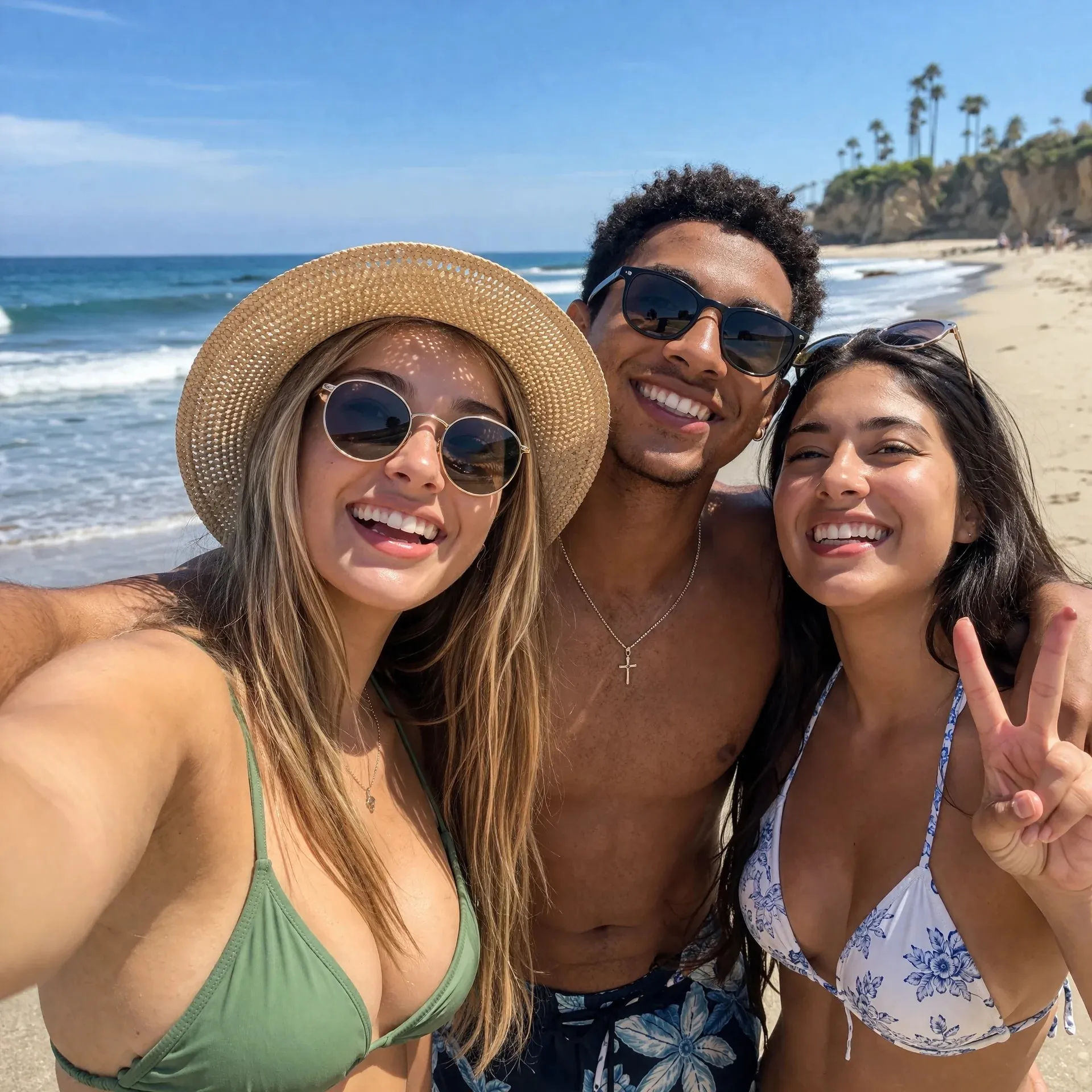
GPT Images 2.0 is positioned as a practical image workflow for creators who need more than a single prompt result. Start with a clear brief, add source images when consistency matters, then review text, layout, subject details, and publish-readiness before using the output.
Brief-to-image creation
Reference-based editing
Product and content visuals
Output review workflow
Use it for product scenes, social graphics, ad concepts, explainers, thumbnails, posters, and early design directions.
Start from text, or switch to image-to-image when source material, subject consistency, or visual direction matters.
Use references to guide product appearance, characters, layouts, scene context, style, or assets that should remain recognizable.
Instead of treating the model page as a magic prompt box, this workflow frames GPT Images 2.0 as a production assistant: define the job, supply references, generate options, and inspect the parts that matter before publishing.
Write the asset type first: listing image, launch graphic, explainer, poster, social post, thumbnail, mockup, or reference-based edit. That keeps the prompt anchored to a usable deliverable.
Use images to preserve a product, person, interface, room, color system, or composition while asking for a new scene, style, crop, or content direction.
Check words, labels, objects, hands, faces, logos, proportions, and hierarchy before the image enters a campaign, product page, article, or client review.
Define the audience, format, scene, subject, style, required text, and where the image will be used. A clear brief helps the model aim at a real output instead of a vague picture.
Add source images for product shape, character identity, interface structure, brand cues, material texture, or composition. Explain what should stay and what can change.
After generation, revise the smallest useful part: text, crop, background, product placement, color palette, or visual hierarchy. Repeat until the image is close enough to use.
GPT Images 2.0 is the Image 2 model page for a prompt-led and reference-assisted image workflow. It is designed for generating new visuals, editing from images, and preparing drafts that still need human review before publishing.
The copy is based on OpenAI's public GPT Image documentation and image generation materials: text prompts, image editing, reference images, multi-turn iteration, and output options such as size, quality, format, and transparency where supported by the underlying API.
Yes. Use the image-to-image workflow when you want to preserve a subject, product, layout, or visual style while changing the background, scene, format, or creative direction.
Add references when words alone are not enough: product shape, character identity, room layout, UI structure, brand colors, material texture, or an existing image that should guide the result.
No. Ads are one use case, but the workflow also fits product imagery, social posts, educational graphics, blog visuals, thumbnails, posters, interface mockups, and multilingual content.
Write the deliverable first, then add audience, subject, scene, style, language, exact text, format, reference instructions, and constraints. For edits, separate what must stay from what should change.
Review spelling, labels, small text, object counts, hands, faces, logos, product details, claims, and brand rules. AI images can look polished while still needing careful verification.
Generally, generated outputs may be used under the platform terms, but you are responsible for checking rights, trademarks, likenesses, copyrighted inputs, regulated claims, and publishing platform policies.
Start with a brief, add references when needed, and use GPT Images 2.0 to create visual drafts for products, content, ads, social posts, explainers, and multilingual campaigns.